
Top Six Open Source Password Managers

One of the solutions that I commonly recommend and deploy for clients are password managers. In case there's any doubt on what a password manager is or does, it's a piece of software that helps you generate, store, and manage your online passwords in a secure and convenient way. Instead of having to remember multiple complex passwords, you can use a password manager to generate strong passwords and store them securely, as well as log in to your online accounts automatically. Most password managers have features like autofill, random password generation, duplicate password checks, leak checks, and mobile apps.
There are two main types of password managers: proprietary and open source. Proprietary password managers are developed and sold by a specific company, and their source code is not available for users to view or modify. On the other hand, open source password managers are developed by a community of users and their source code is freely available for anyone to view and modify. One benefit of open source applications is that since the source code is available for inspection, and you can be sure that the password manager service provider has no access to your passwords based on how they are stored and/or encrypted. With closed source / proprietary solutions, you will need to trust them to a certain extent.
A few well-known proprietary password managers are brands such as 1Password, LastPass and DashLane. In more recent years, many VPN or antivirus companies have also developed their own password managers, some examples being NordPass or Norton Password Manager. For the purpose of this article, I will be discussing Free Open Source Software (FOSS) solutions, as they are usually free to self-host and deploy for clients.
Contents
1. KeePass
One can't start a discussion about password managers without mentioning KeePass. KeePass is a popular FOSS password manager and can be installed on Windows, MacOS and Linux systems. KeePass has been around since 2001 and is available in multiple languages including French, German, Italian, Dutch and Spanish. KeePass also supports encryption with a variety of algorithms including AES-256-CBC and PBKDF2-SHA512. Various forks of KeePass such as KeePassXC, KeePassX, KeeWeb and KeePass-electron have been spawned from the original KeePass codebase. KeePass itself is an entirely offline password manager, with passwords being stored to an encrypted file on disk. One way to ensure that there are cloud-sync capabilities with KeePass databases are to store the password storage file on a cloud storage medium with sync capabilities such as Dropbox or Google Drive. For the purposes of this article, I am going to look solely at the original KeePass as it is the oldest and most established version of the software.
Autofill
KeePass by itself does not do an amazing job of autofilling passwords when they are required as its primary purpose was more or less that of a password store to securely replace storing password in a notebook for example. The default autofill capabilities of KeePass is pretty basic, relying on a function it calls "auto-type". "Auto-type" basically allows a pre-determined sequence of keys to be entered using a simulated keyboard by KeePass when a hotkey sequence is entered. However, setting up the auto-type sequence is slightly complex for the casual user or the non-IT saavy. That being said, there are add-ons to KeePass that all you to use its autofill capabilities in web browsers and forms with much less set-up and a simpler interface. Lastly, there is always the option to bring up the KeePass interface via hotkey and manually drag and drop user IDs and passwords into the the respective fields.
KeePass autofill tutorial
Password Sharing
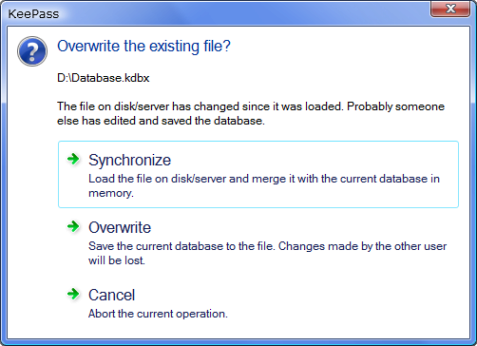
While KeePass databases can be stored on a network location or shared drive for collaborative use, its password sharing capabilities are perhaps the weakest of all the password managers discussed in this article. This is primarily because of KeePass' origins as a desktop application, during a time when applications were a lot simpler and the need to share passwords were not as great for businesses as they are today. The method of password sharing requires a network drive and also needs users to select the right option each time; not exactly user friendly or intuitive.
Security
Perhaps KeePass' strongest point, security is taken very seriously in KeePass. It is evident that security is very purposely designed into KeePass, in not only the storage and encryption of passwords, but also in trying to prevent leakage of passwords through various methods e.g. malware or keyloggers on the computer, rootkits able to read in execution memory, amongst others. KeePass databases are all encrypted using best-in-class encryption methods, ensuring that even if the database file is somehow leaked or obtained, deciphering it would be as good as impossible. In addition, KeePass also takes measures to prevent dictionary and guessing attacks against the master key / password with which databases are encrypted with.
Apart from ensuring that your passwords will never be leaked if the databases are compromised, KeePass also has features such as in-memory encryption (aka "Process Memory Protection") that prevent malware or bad actors that are able to perform memory or RAM sniffing attacks from gaining access to private password data. Such protection is extremely technical in implementation as it requires an understanding of a sophisticated attack method that malicious actors use to gain access to passwords.
Additional Capabilities
While the original KeePass app is quite basic in terms of its functionality, it has a large variety of plugins and extensions that extend (see what I did there?) the capabilities of KeePass by providing functions such as automated backups, sync using online providers, storage of TOTP 2FA keys, autofill, etc. It is important to note however, that not all forks of KeePass are compatible with its sizeable library of plugins, which also means they don't benefit from any additional capabilities that plugins offer. However, many of these forks have also implemented native capabilities that are not found in the original KeePass application.
Final Verdict
KeePass gets a passing grade as an Open Source password manager but just barely, due to the lack of password sharing capabilities that are normally required in teams and that provide most small businesses and startups value. That being said, KeePass gets the highest grade for security of any password manager on this list, due to their focus on anti-snooping and encryption features. If your primary concern is the security of your passwords (even over the convenience of use), consider KeePass; its deployment in many enterprise environments is testament to its reputation as a secure password manager.
2. Psono
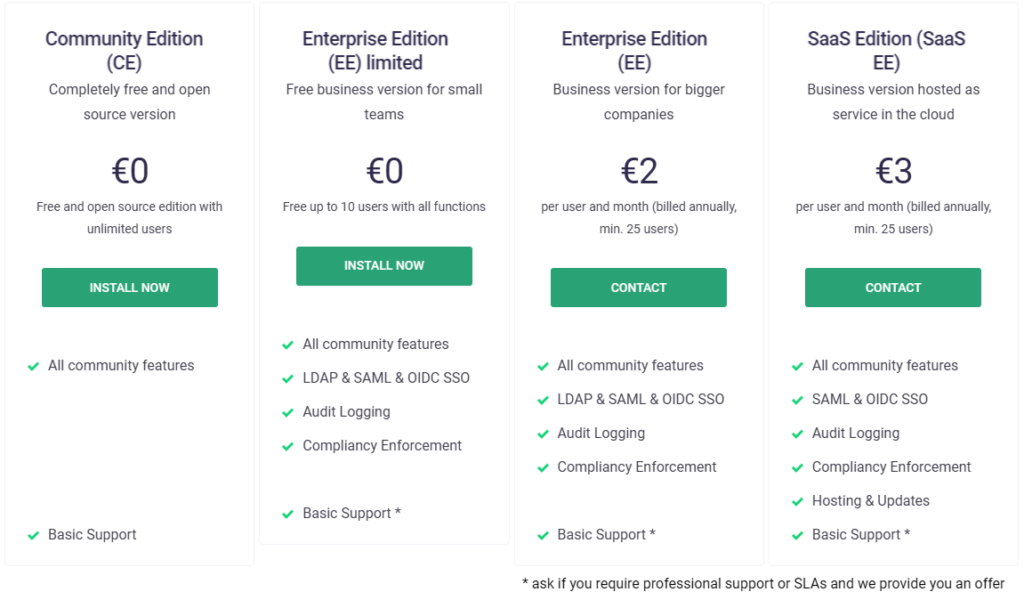
Psono bills itself as the "Open Source Self Hosted Password Manager for Teams" which immediately differentiates it from the first entrant on our list. The self-hostable capabilities of Psono means it is built with a network, web-first approach, rather than the desktop first origins of KeePass. Psono offers 3 versions of its software, the free Community Edition (CE), and the freemium Enterprise Edition (EE), and lastly a hosted SaaS offering based on its EE edition. Psono is quite generous with their Enterprise Edition, making it completely free to small teams of 10 or less users, something most companies with EE offerings don't do. While there is feature parity for most of the necessary functions between CE and EE; SSO, Audit Logs and Policy Enforcement are locked behind a per user paywall on EE. In my opinion, apart from SSO, this is a very fair deal for the rest of features which are more geared towards enterprise requirements. Personally I feel that password managers restricting features relating to security behind a paywall is a bit of an ironic situation, however I have to commend Psono's approach in spite of this, thanks to their generous freemium policy.
Autofill
While Psono does offer autofill capabilities via its browser extensions, which are available for Chrome, Firefox, Safari, and Edge. Unfortunately, it can only perform autofill for websites and not desktop based apps as the extensions do not have the capability to hook into the operating system and use the clipboard or emulate keypresses. Psono also has mobile apps available for iOS and Android that enable autofilling on mobile browsers. Take note however, that the same limitation does not apply to the mobile app - it should do autofill for both native applications and websites.
Password Sharing
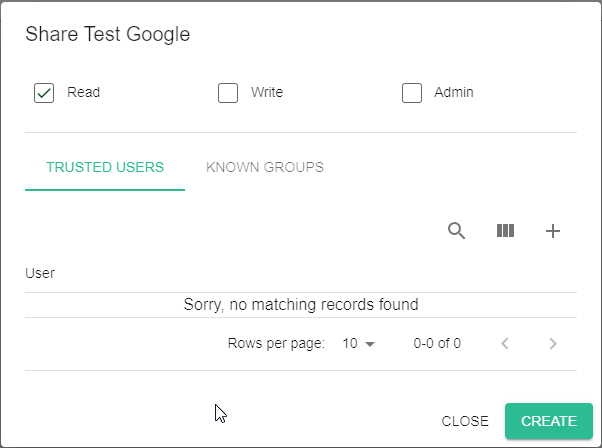
As a web-first password manager, Psono has password sharing at the core of its design philosophy. Instead of a simple means of allowing another person to access your selected passwords, Psono's sharing has granular permissions allowing one to decide if you want the person to only have read access to the password, or grant them write access allowing them to modify the password or username details or even grant access, allowing them to share the passwords with others. Psono also has a capability known as "Link Shares", which basically allows one to share their password with external parties that either do not have a Psono account, or do not have an acount on the same Psono instance. By creating a specific web link from Psono itself, you're able to share this link with anyone you'd like to have access to your password, or any other file or content you'd like to share. You're also able to define a validity period of the Link Share, how many uses till it expires, and if you want to set an additional passcode to reveal its contents.
Psono's Secret Sharing
Security
Psono takes security seriously and offers robust security features to keep your sensitive data secure. For starters, one of its notable security features is the implementation of end-to-end encryption, which ensures that all data is encrypted on the client-side before being transmitted to the server, and only decrypted on the client-side as well. This means that Psono's server never has access to the unencrypted data, making it an excellent option for users who are concerned about their data privacy.
Going into detail about the kind of encryption used by Psono, they state that they "are using Curve25519 and Salsa20 in form of NaCl (pronounced “salt”)". Encryption using Curve25519 is known to be much faster than, but still as secure as, the better known RSA and AES encryption algorithms. Moreover, the end-to-end encryption standard used by Psono is not just standard TLS 1.2 used by most systems to prevent MITM attacks and "spoofing" but Psono has also implemented a "middle" layer in their E2EE, which functions similar to a VPN or SSH tunnel. This ensures that even the encrypted data stream cannot be intercepted as there is an additional layer of encryption in the form of the tunnel that has to be bypassed first. Lastly, for encryption at rest on the Psono's SaaS servers for data such as email addresses or account related information, a Salsa20 stream cipher with a Poly1305MAC (message authentication code) is used to reduce any trust required for Psono's DBAs.
Psono has taken extreme caution in the protection of its data through the use of strong, modern encryption methods, perhaps necessary given that is aimed at being an online available, self-hostable solution. Yet, it has not sacrificed speed and usability in terms of the different functions it offers its users.
Additional Capabilities
Being a web-focused password manager may necessitate strong security measures, but it also opens the door to a whole litany of internet-enabled features common with many paid, SaaS solutions. Psono offers the following features:
Password Breach Detection
Through integration with haveibeenpwned.com, a well-known website that discloses password databases released in the wild or data breaches of known websites and services resulting in account credentials being compromised; Psono is able to warn users if their currently used passwords have been discovered in leaks or compromised as a result of a third party security incident.
Secure Notes
An apt name, basically plaintext notes for anything you need to remember, secured with Psono's end-to-end encryption.
Secret Sharing
Psono provides users the ability to share any of their saved data entries others on the same Psono instance, even allowing the owner to decide what level of rights to be granted with granularity at the read, write or administration level.
Link Share
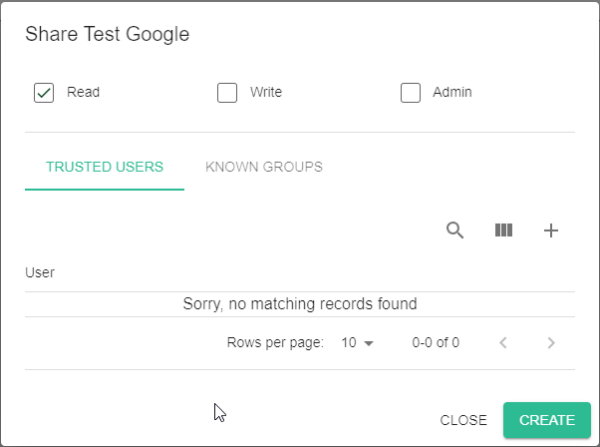
External users without an account on your Psono instance? Not an issue! Psono also provides the ability to share links (via a unique URL) to any note, file or password on your instance.
Bookmarks
Psono's ambitions to fully replace everyday options of password saving are apparent in this feature. While bookmark management is usually a function in the domain on web browsers, people also use their web browsers "save password" options as a password manager. Psono has, perhaps in an attempt to be a drop-in replacement for all the insecure and ancillary functions provided by browsers, extended its capabilities to supplant the bookmarking function browsers provide. Users can thus save bookmarks in Psono as they do in any web browser easily with one click thanks to the Psono browser extensions.
Multi-factor Authentication
Psono also offers multiple Multi-Factor (see what I did there?) Authentication options for enhanced login security. TOTP, Duo, Fido2/WebAuthn and Yubikey are all possible MFA options.
Password Capture & Autoupdate
A staple feature of many modern password managers, through its browser extensions, Psono is able to identify new or changed passwords on sites that have used Psono for password storage previously and propose an update of the stored passwords to the newer one.
PGP Encryption & Signing
Perhaps the most interesting feature of Psono is its ability to encrypt and decrypt messages with OpenPGP keys. This allows for secure communications via email and for recipients to verify the identity of the sender.
Final Verdict
In a way, looking at its capabilities, limitations, and approach to password management Psono can perhaps be compared to KeePass as a total opposite; one started off in an era of desktop applications and limited web capabilities, with limited functionality for password sharing, while the other eschews the desktop entirely, choosing to focus on websites and web applications, with password sharing baked into its core functionality.
Overall, Psono is a feature-rich password manager that offers a range of tools for managing and sharing passwords, as well as strong security measures to keep your data safe. Whether you're an individual looking for a convenient way to manage your login credentials, or a business seeking a secure way to share passwords among team members, Psono has something to offer.
3. Buttercup
Aesthetics are subjective but in my opinion, Buttercup is perhaps the sleekest looking password manager on this list. Buttercup's main Github repository proclaims to be "The mighty NodeJS password vault"; for some of the more technically inclined audiences, this may be a deal breaker as JavaScript is known to be riddled with security issues due to it being a "loosely typed" language and using NodeJS as a backend to a password manager is not confidence inspiring at all. That being said, it is an open source project and the code is free for all to check and verify, and it has been in very active development for a long time, albeit with a very small team of contributors. One other issue I had while researching Buttercup was the lack of documentation that seemed to be freely available on the product. However, this may not entirely be the fault of the development team as a Google search reveals there was documentation created on Openbase, but due to the Openbase shut down, that documentation may be very well lost forever.
One thing to note about Buttercup is that unlike Psono, it is not a hosted application with client-server architecture. Rather it is a lot more like KeePass (or perhaps in between both these options) where it a desktop or mobile application stores data either locally or through a cloud service of your choosing (as of time of writing, Google Drive, Dropbox and WebDAV are supported). Desktop clients are available for Windows, macOS and Linux machines as an AppImage.
Autofill
Buttercup offers autofill capabilities through its browser extensions, which are available on Chrome and Firefox. Safari users unfortunately need to wait for development of the extension by the Buttercup developers, or an alternative is to install Chrome or Firefox on your macOS machine. iOS and Android apps cover the autofill use case for mobile phones. Just like Psono, however it also faces the same issue of being unable to perform autofill for desktop applications. In my opinion, this is a huge downside to Buttercup as it doesn't have a client-server architecture to benefit from cloud functionality yet fails to take advantage of the benefit of being a desktop first app by having the possibility of a system wide hotkey to enable autofill.
Do note that in order to take advantage of Buttercup's autofill functionality on a computer, one needs to install both the browser extension as well as the desktop application as the vaults are accessed via the extensions indirectly through the desktop application.
Password Sharing
Just like KeePass, Buttercup stores its saved passwords within a file. However, unlike KeePass, there are no known methods for password sharing. It is entirely possible that dropping the .bcup file onto a file sharing server may work fine but an issue with Buttercup is that it possesses no concept of accounts, access rights or permissions. The only way to provide team members access to a password is to provide them full access to the vault. Firstly, definitely not best practice - and secondly, very risky and prone to fat finger mistakes, accidental deletions and the plethora of problems that come with not having CRUD rights and different user accounts.
Security
I've put some of the security concerns about Buttercup forefront regarding its use of javascript and NodeJS and I wish I could say that it stopped there. However, a lot of information on Buttercup's security features are quite sparse due to the lack of documentation, raising some additional concerns. While it is advertised as using AES 256 encryption, it uses a proprietary (to be clear, defined as customized, not closed source) vault format that could have vulnerabilities.
To come back to NodeJS, a well-known issue with apps using NodeJS is the fact that npm or Node Package Manager, the backend tool that pulls dependencies from the NodeJS repository has been known to be vulnerable to upstream supply chain attacks where the owner of a low level package could be compromised and hackers could use access to their commit credentials to inject malicious code. As a result, all downstream packages using that piece of software like Buttercup could become a security vulnerability.
Lastly, the Buttercup desktop app uses Electron (aka Electronjs), a Javascript software framework for deploying web application as desktop applications. Electron itself has a history of having vulnerabilities that could affect the apps built using its framework, something password manager apps should technically avoid as much as possible. Considering that it functions as desktop app, first and foremost, I question why the decision was not made for it to be a completely native application rather than being built on Electron. Perhaps the developers wanted something that would require minimum amount of work to deploy cross-platform across different operating systems. In my opinion however, the security and minimizing exposure to possible security vulnerabilities should have been a much higher priority for a password manager.
Additional Capabilities
Perhaps the best part of Buttercup is that it is lightweight and completely distraction free. It has no additional capabilities and doesn't attempt to be anything more than a simple password manager.
Final Verdict
While probably ranking top on the "ease of use" list among all password managers here, Buttercup is definitely more suited to solopreneurs or as a personal password manager rather than something I would recommended deploying in a small company environment. Its lack of functionality as compared to the other options on this list and inability to perform any kind of password sharing restricts its use in many contexts.In conclusion, while Buttercup has many positive aspects such as its ease of use and simple interface, it falls short in terms of security and functionality. Its lack of password sharing and desktop autofill for applications are major drawbacks that limit its usefulness in a business setting. Additionally, the use of NodeJS and Electron raise concerns about potential vulnerabilities that could leave users' passwords at risk. Overall, if you are looking for a basic and easy-to-use password manager for personal use, Buttercup may be a good option for you. However, if you need more advanced features or plan to use it in a team environment, there are other open source password managers on the market that may better suit your needs.
4. Padloc
Padloc is simplistic in design but robust in functionality. It's cross-platform, meaning it runs on all major operating systems, plus it's open-source and prioritizes a seamless user experience with features like family vault sharing. Padloc is best suited for users who appreciate minimalism and ease of use over an extensive feature set, and it excels in team environments thanks to its intuitive design and sharing features.
Despite being open source, Padloc also has a cloud based solution with multiple tiers for both individual and business users. The free plan for individuals has basic password management features and allows for unlimited passwords and devices, a much more generous offering than the free plans for some proprietary equivalents. In additional, having commercial offerings is usually a positive sign to me for an open source project as it gives them ways to fund development other than purely donations, ensuring active development on the product and a much lower risk of abandonment.
Autofill
The primary drawback of Padloc lies in its absence of autofill capabilities. Users are required to manually import their passwords into the Padloc vault and then copy and paste them when needed. The developers have expressed that they have no intention of introducing autofill functionality, citing concerns over security vulnerabilities related to such features and a dedication to preserving a streamlined user experience. This may be a dealbreaker for many people used to having autofill capabilities on their password manager and honestly, copy pasting from another application or website, makes it no different from storing the passwords in an Excel sheet or notepad document from a usability standpoint, making it hard to convince people to move over to a password manager like Padloc if there are no tangible benefits and only pros from a security standpoint.Password Sharing
Padloc provides a password sharing feature that enables users to securely share sensitive information among families, teams, or organizations. This is accomplished through Shared Vaults, which can be created and managed within an organization. These vaults allow multiple users to access and manage shared passwords and other confidential data securely.However, the sharing and encryption structure of Padloc also means all vault items must be shared and there is no capability to share individual passwords unless you create a single vault for that individual password. There is also no capability to create groupings or to share only a select set of passwords within a shared vault. This all-or-nothing dichotomy in Padloc makes it slightly unwieldy for businesses which require high security but have many different actors or departments working on shared tasks.
Security
One of the standout points for Padloc as a password manager, if not made obvious from the discussion on the developers' approach towards autofill yet, is it's strong emphasis on security. Padloc's design philosophy and security measures are centered around simplicity, transparency, and robust encryption. Here’s a detailed look at these aspects:
Design Philosophy
Simplicity
Padloc aims to provide a user-friendly experience, allowing users to manage their sensitive data without needing extensive technical knowledge. The application is designed to simplify the complex processes involved in securely handling passwords and other sensitive information, making it accessible to a broader audience, including those who may not be technically savvy.
Transparency
The open-source nature of Padloc fosters transparency, enabling users and security experts to review its code. This openness is vital for building trust, as it allows for independent audits and the identification of potential security vulnerabilities. Padloc emphasizes that security through obscurity is ineffective, advocating for clear visibility into its security practices.
Security Features
End-to-End Encryption
Padloc employs strong encryption protocols to protect user data. It utilizes three main encryption schemes, including AES in GCM mode for symmetric encryption, ensuring that all stored data is securely encrypted from the outset. This means that even Padloc cannot access users' sensitive information.
Independent Security Audits
Padloc has undergone rigorous penetration testing by third-party security experts, which revealed no high or critical vulnerabilities. Only minor issues were identified and addressed promptly. This proactive approach to security reinforces Padloc's commitment to maintaining a secure environment for its users
Trustless Architecture
Padloc employs strong encryption protocols to protect user data. It utilizes three main encryption schemes, including AES in GCM mode for symmetric encryption, ensuring that all stored data is securely encrypted from the outset. This means that even Padloc cannot access users' sensitive information.
Additional Capabilities
Padloc offers several additional features that are not typically found in standard password managers, enhancing its functionality and user experience. Here are some notable ones:
Note-Taking and Document Storage
Padloc allows users to securely store not just passwords but also notes, documents, and other sensitive information. This feature enables users to keep various types of confidential data in one place, making it a versatile tool for managing personal information beyond passwords.
Tagging System
Users can organize their vault items using a tagging system. This feature helps in categorizing and quickly locating specific passwords or documents, improving overall efficiency when managing multiple entries.
Security Reports
Padloc provides a security report feature that allows users to review the strength of their passwords and overall security posture. This report can highlight weak or reused passwords, helping users enhance their security practices.
Multi-Factor Authentication (MFA)
While many password managers offer basic two-factor authentication, Padloc includes a more comprehensive multi-factor authentication option as part of its premium features. This adds an extra layer of security for user accounts.
Favicon Support
To aid in identifying vault items quickly, Padloc supports favicon integration, allowing users to associate specific icons with their entries, enhancing visual organization.
Final Verdict
If you want a simple, robust, secure password storage solution and can live without the need for autofill, then Padloc ticks all the boxes. That being said, I'd suggest you hold your horses and read on because while Padloc may be pretty good especially for minimalists, our 2 next recommendations blow it out of the water in terms of overall functionality for the same level of simplicity and security.
5. Bitwarden
Bitwarden is perhaps the most well-known name in the open source password manager space. Often hailed as the gold standard for password management, this tool is renowned for its robust features, unparalleled security, and adaptability. Bitwarden was launched in 2016 with the mission of providing a secure, open-source solution for managing passwords. Since its inception, Bitwarden has grown rapidly, earning the trust of millions of users worldwide. Its commitment to transparency and security has made it a pillar in the realm of digital safety.
The project has been open source since Day 1 and remains deeply committed to the FOSS community and its principles, one of the crucial elements of its appeal. Due to its open source nature and community-driven development, Bitwarden enables users to audit the code, ensuring a level of trust that is often absent in proprietary solutions. Additionally, it offers an impressive array of features including end-to-end encryption, password sharing options, and cross-platform compatibility. Users can easily access their vault from any device, making it highly convenient for both personal and professional use. Furthermore, its user-friendly interface balances functionality with simplicity, catering to both tech-savvy individuals and novices alike. Last but definitely not least, the end-to-end encryption model of Bitwarden's client server architecture ensures that not even the server your passwords are stored on are able to perform decryption and gain access to them. Due to the zero knowledge architecture approach that Bitwarden has adopted, even in the case of the cybersecurity breach or hack on the server, not even the hackers will be able to access your passwords. As such, Bitwarden stands out as one of the top choices for anyone seeking a reliable password management solution.
Autofill
One area where Bitwarden really excels in is its autofill capabilities; seamlessly integrating with browsers and mobile devices to automatically fill in login credentials. To achieve this, Bitwarden offers native applications for a variety of devices, including mobile, as well as a browser extension that can function independently of the native applications if needed.
Bitwarden autofill capabilities on mobile devices can be configured to detect password entry boxes in websites and apps via the accessibility APIs, and then allow users to select appropriate accounts and password information to fill. This works on both websites and other native applications.
While there is both a desktop app and a browser extension, for desktop autofilling, the browser extensions must be installed for it to work. As you may guess, this also means that the autofill capabilities of Bitwarden are limited to browsers and don't extend to other desktop applications. The browser extension can be activated by using specific hotkeys to bring up an autofill menu, or clicking a Bitwarden icon that appears when a login form is detected. Alternatively, right clicking in the browser window, will provide a context menu option to select Bitwarden autofill. The desktop extension does however serve an important purpose; it allows for capturing of Windows Hello or fingerprint reader output to act as authentication each time you bring up Bitwarden for autofilling purposes, saving you the need of having to retype a long and complicated password each time.
Password Sharing
Bitwarden supports secure password sharing, allowing users to share access with trusted individuals without compromising security through the use of its Collections. The architecture in Bitwarden allows for the definition of Organizations (think of them as companies or businesses) and Collections within those organizations that can be shared to specific people. Additionally, each password can be assigned to any number of Collections, allowing you to apply it to multiple collections, and define collections in any way you want. Perhaps each collection can be assigned to a single person? Or some collections can be assigned to a team of people. This allows fine-grained sharing permissions that do not rely on sharing the entire vault of passwords to a single person and even deciding for each and every password, who within the team or organization should have access to it.
Do note that password sharing is an enterprise feature and requires a paid Business tier plan, even for self-hosted instances.
Security
New text element
Additional Capabilities
New text element
Final Verdict
New text element
6. Vaultwarden
New text element
Autofill
New text element
Password Sharing
New text element
Security
New text element
Additional Capabilities
New text element
Final Verdict
New text element